
Article
How to Watch OTT Apps on a Normal TV: 4 Easy Ways
Four methods to access OTT apps in the normal television are:
- Using the streaming box to connect the television
- Using the set-top box to install the application whether with or without the television or even with broadband services
- Using the laptop or mobile phone with the help of the HDMI cable
- Casting from the mobile phone
What you need before you start
Check three things first. They decide which of the four ways will work for you.
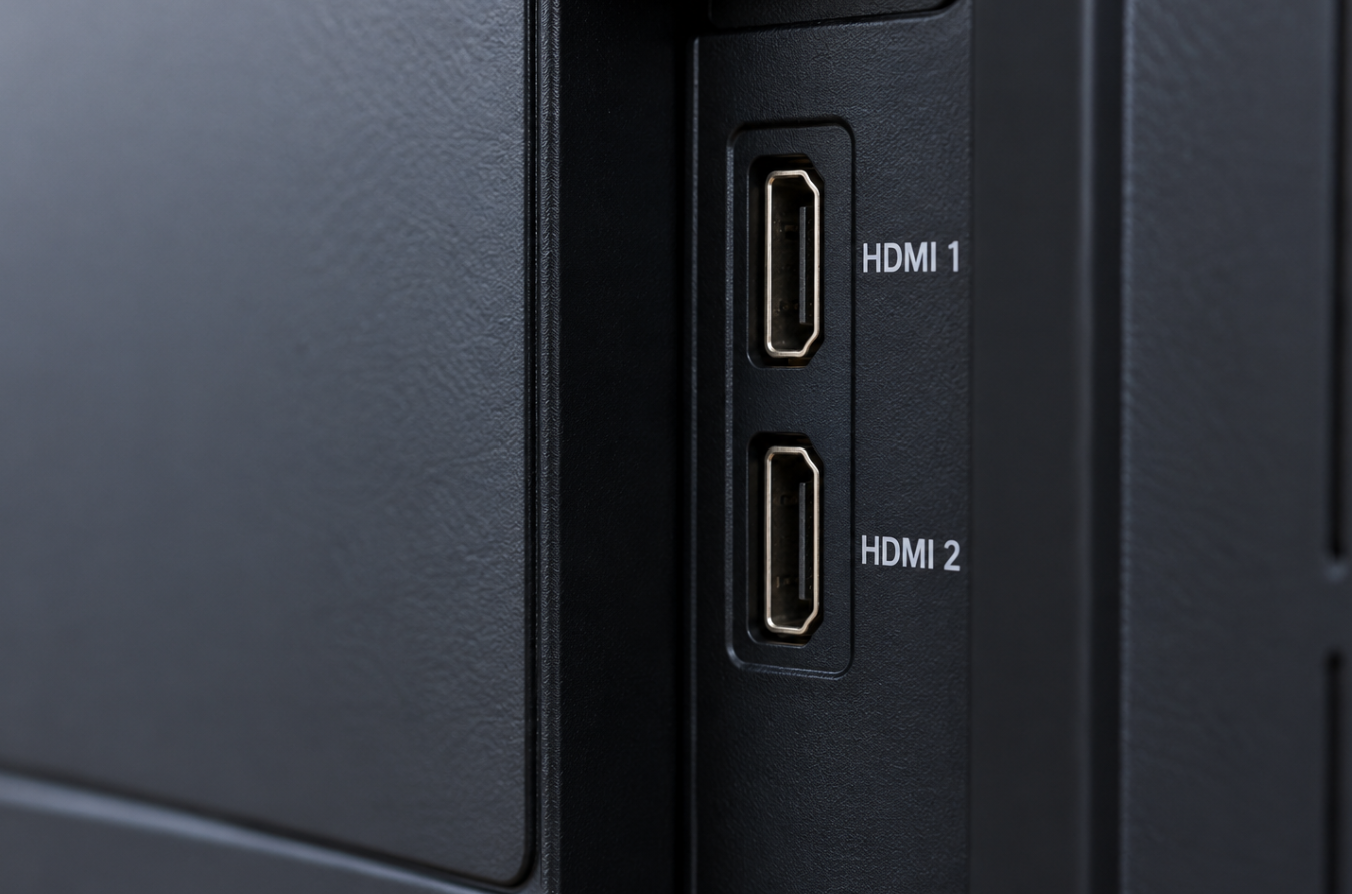
An HDMI port on your TV
Almost all flat screen televisions will include at least one HDMI port, either at the rear or side of the television. Older cathode-ray tube televisions do not include any HDMI ports.
A steady internet connection
Netflix recommends about 3 Mbps for HD, 5 Mbps for Full HD and 15 Mbps for 4K. A steady connection matters as much as the speed, so keep your router in the same room as the TV if you can.
A streaming plan that works on a TV
Not every plan plays on the big screen. Where Netflix sells a Mobile plan, it plays on one phone or tablet only and doesn't support casting or mirroring. See Netflix's plans page, which shows the plans for your country. That means a Mobile plan won't reach your TV by any of the four ways below. Check your other apps' plans too.
Way 1: Plug in a streaming stick
A streaming stick is a tiny gadget that you insert into an HDMI port. It adds streaming apps to a non-smart TV and usually comes with a remote control.
Steps to install it:
- Insert the stick into any HDMI port.
- It should be powered by using the wall adapter that comes in the package.
- Switch on the TV and select the HDMI input on which the stick is inserted.
- Connect the stick to Wi-Fi.
- Log in to all paid apps.
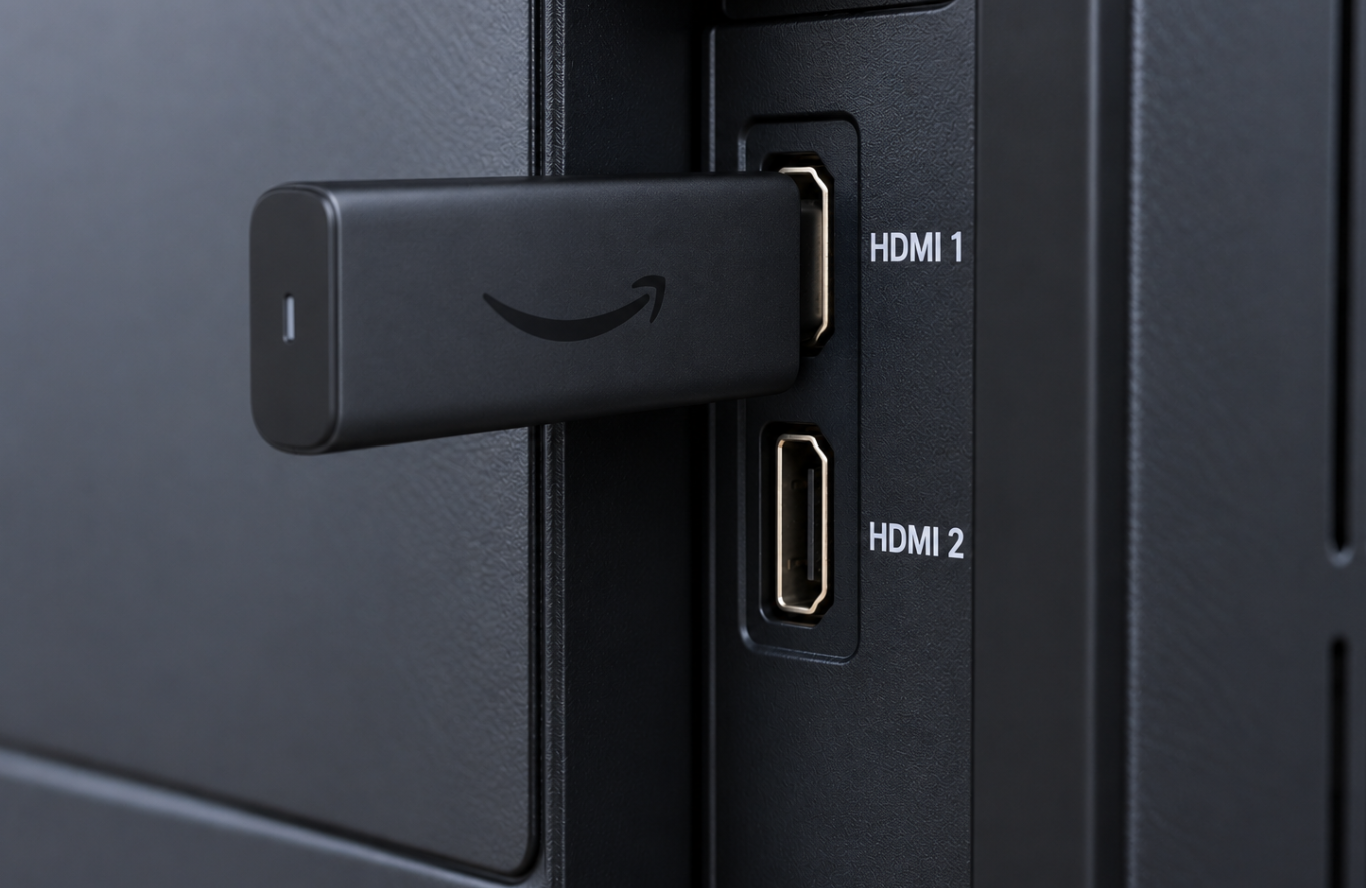
Before you buy, check that the apps you use are available on that stick. Pick HD or 4K to match your TV. If your HDMI ports are recessed, check the stick's size too, as some won't fit.
Way 2: Use a set-top box from your TV or broadband provider
Some cable, satellite, and broadband companies also provide an appliance which can stream apps alongside regular television channels through a single remote control. If you are using a rented box right now, see if an app compatible box is available to use.
These offers vary by region, so here are the questions to ask your provider:
- Is there any fee charged for renting the box?
- What streaming apps does it support?
- Do my existing app logins work with it?
Way 3: Connect a laptop or phone with an HDMI cable
The most straightforward wired choice would be a laptop that has an HDMI output. Plug it into the TV and choose the HDMI input, start the streaming service in your web browser, and play the video full screen. That transforms your average TV into a big monitor.
Not all modern laptops have a full-sized HDMI output, so you may need a USB-C to HDMI cable.
It is more difficult to stream via a phone because not all phones transmit video via USB-C cable. You will have to find out which type of adapter your phone needs.
This solution has some restrictions:
- No TV remote control, only laptop/phone controls will be available.
- The laptop/phone will be busy during the session.
- A phone-only streaming plan may not support playback on a TV. Check the service’s plan restrictions.
- Surround sound may require additional settings.
Way 4: Cast from your phone
Casting sends video from your phone to a casting device plugged into your TV, so this way suits people who already own one. Buying a casting device only for this is rarely worth it, and the rules have changed.
Netflix supports casting only on certain devices: Chromecast models without a remote, Google Nest Hub displays, and selected Vizio and Compal TVs. Casting requires a Standard or Premium plan. Check Netflix’s current supported-device list before buying equipment. See Netflix’s supported-device list.
So test each app before you spend any money on this way. Mirroring a paid app may also show a black screen on some devices. That's a possibility, not a rule. If it happens, open the app on the TV device itself instead.
How to watch OTT on a normal TV: which way should you choose?
Way | What you need | Rough cost | Picture quality | Remote? | Best for |
|---|---|---|---|---|---|
1. Streaming stick | HDMI port, Wi-Fi | Low to medium | HD or 4K, to match your TV | Yes | The simplest set-up |
2. Provider set-top box | An offer from your provider | Low to medium, may be monthly | Depends on the box | Yes | People who already rent a box |
3. Laptop or phone by HDMI | HDMI port, cable or adapter | Low if you own the laptop | Depends on the device | No | One-off or occasional use |
4. Casting | A casting device already in your TV | Low if you own one | Depends on the app | Your phone | People with an existing casting device |
Which should you pick? If you already rent a box from your provider, ask about an app-ready one. If you want the simplest set-up, get a stick. If you only need it once or twice, use a laptop and cable. If you already own a casting device, test your apps with it first.
What if your TV has no HDMI port?
A converter for an HDMI-to-AV port would enable your streaming box to be connected to a TV set which only has old ports. Be prepared. The quality of image won't be sharp; it will likely be at most standard definition quality, and such converters don't always work. Compare the price of buying the converter and a stick to a cheap smart TV.
Quick fixes for common problems
- No picture: The input setting on the television is wrong. Choose the HDMI input where the device is plugged in by means of the remote control of the television.
- No sound: Check the volume setting on both the television and the device.
- Application not available: Browse through the application store on your device.
- Buffering problem: Bring the device nearer to the router or connect it to the Wi-Fi using 5 GHz frequency band.
- Black screen on mirroring: In lieu of mirroring your phone, open the application in your TV device.
Install streaming apps from the device’s official app store. Avoid unverified or modified app files, which can carry malware or provide unauthorised access to content.
FAQ
Do I need a smart TV to watch Netflix, Prime Video or YouTube?
No. The regular TV which comes equipped with an HDMI port can work with all of them using a streaming stick, set-top box provided by service provider, or a laptop.
Will a phone-only plan work on a TV?
Not at all. The Phone Only plan will work on one phone or tablet but cannot be shown on the television through any of the four methods. Please review the plan prior to purchasing any equipment.
Why can't I cast Netflix from my phone any more?
Netflix no longer supports casting to most TVs and streaming devices. Casting is still possible on some old devices that have been listed by Netflix on their help page. Instead, try using the Netflix app from a streaming stick.
What internet speed do I need?
Netflix suggests at least 3 Mbps for HD, 5 Mbps for Full HD, and 15 Mbps for 4K. The stability of the connection is just as important as its speed.
Can I watch streaming apps on an old TV without HDMI?
However, in some cases, through HDMI to AV converter. The image will most likely not be as clear, and a basic smart TV might be the best use of the cash.